
BaySim FlightPad
Turn your iPad into a live cockpit map for Microsoft Flight Simulator. Track your aircraft, review your route, and teleport from the map — all on your local network.
No account. No cloud. Just your iPad, your PC and your Wi-Fi.
App Store release and Bridge installer download are coming soon.
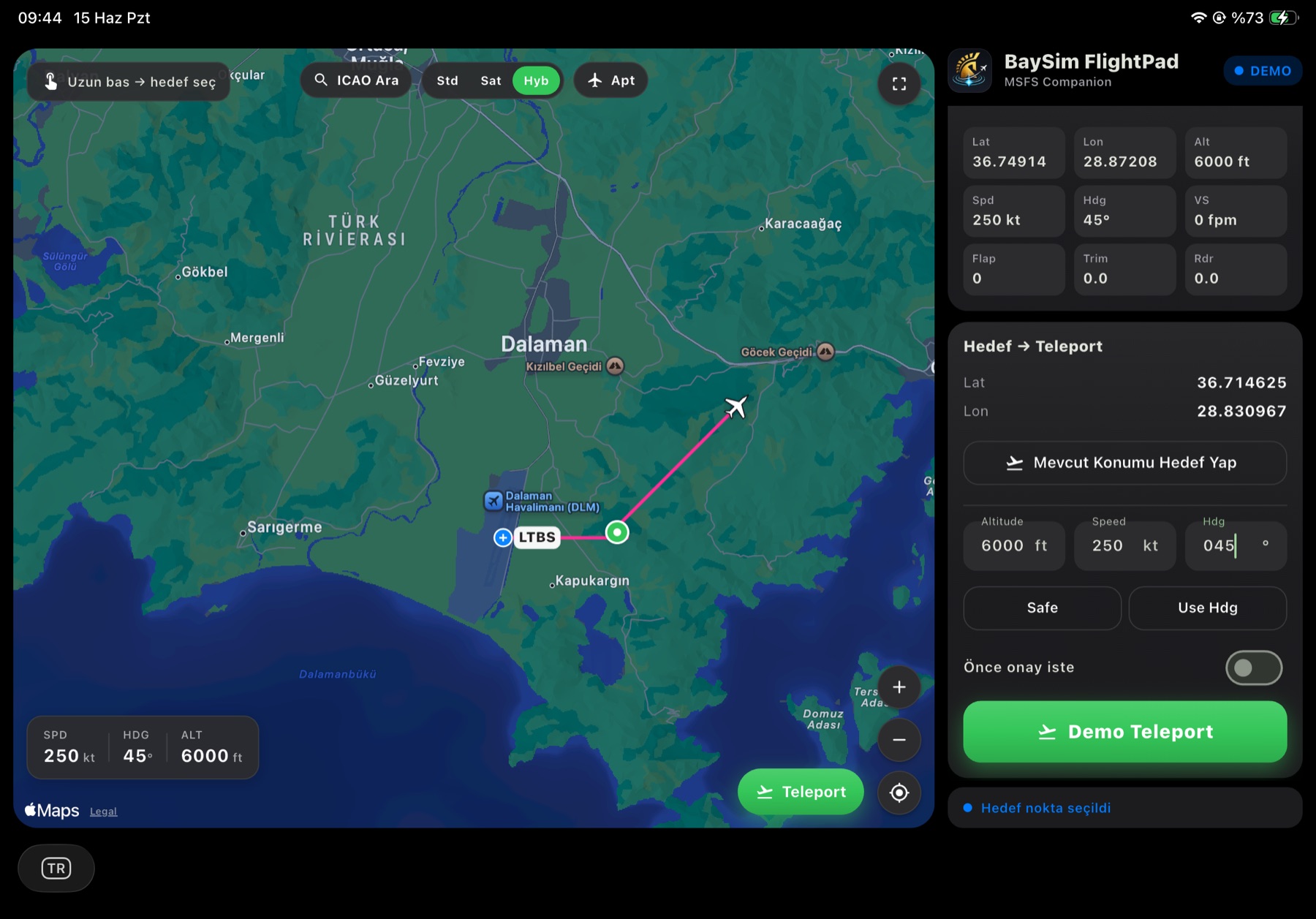
Real iPad app preview — live demo flight
A second screen for your cockpit.
A clear, glanceable map beside the cockpit — live tracking, your flight trail, and one thing a paper chart can't do: reposition your aircraft.
Live Map Tracking
Your aircraft moves on an Apple MapKit map the moment it moves in the sim — altitude, speed and heading at a glance.
Flight Trail
Every leg is drawn live behind the aircraft, so you can replay your approach, pattern or scenic detour right on the map.
Target Selection & Teleport
Tap anywhere on the map to set a target, then jump the aircraft straight there. Perfect for practicing the same approach again and again.
Light & Dark Themes
A bright daytime look and a cockpit-friendly dark mode, so the map matches the lighting of your sim session.
Demo Mode
No PC nearby? Explore the full app with a simulated flight — try the map, trail and teleport before you ever connect.
Local & Private
Everything stays on your own Wi-Fi. No account, no cloud, no tracking — your flight data never leaves your home network.
Track, review, reposition.
Real screenshots from the app. Everything runs on your own local network.
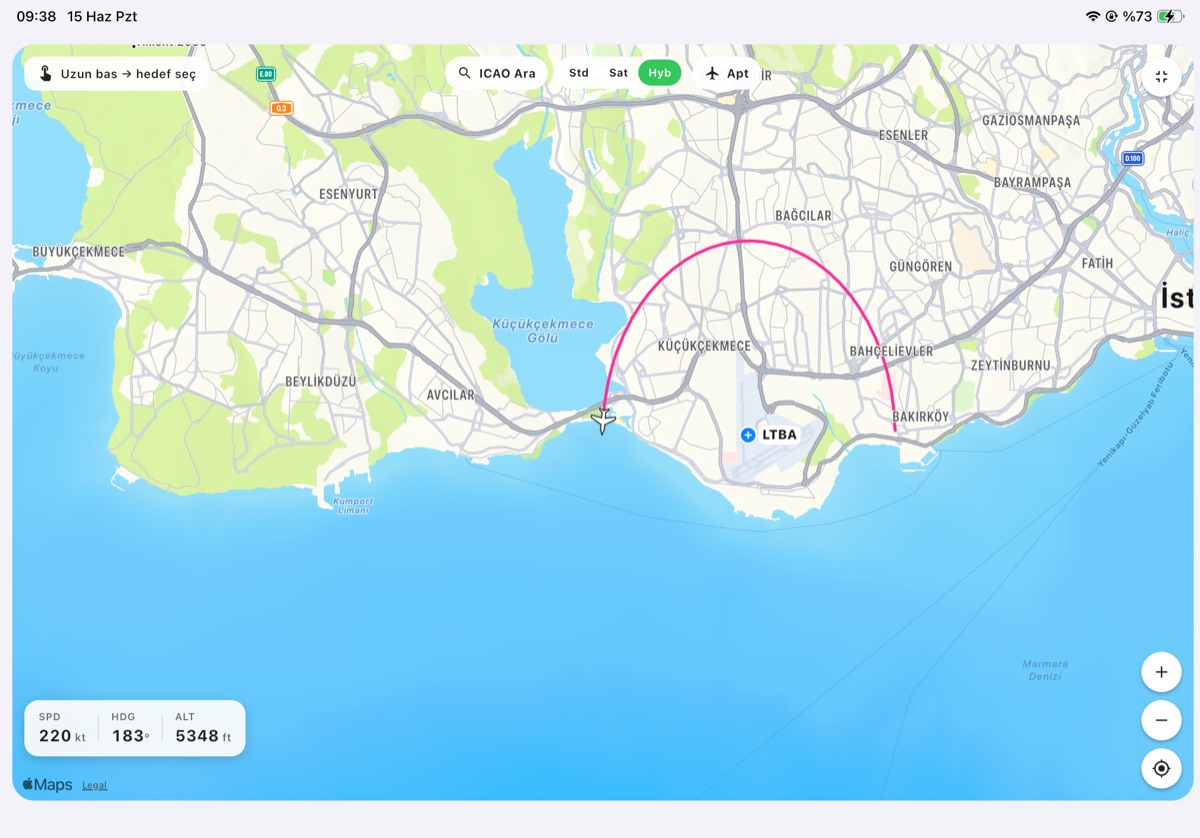
Track your aircraft live
Real-time aircraft position on the map, with speed, altitude and heading streamed straight from the simulator.
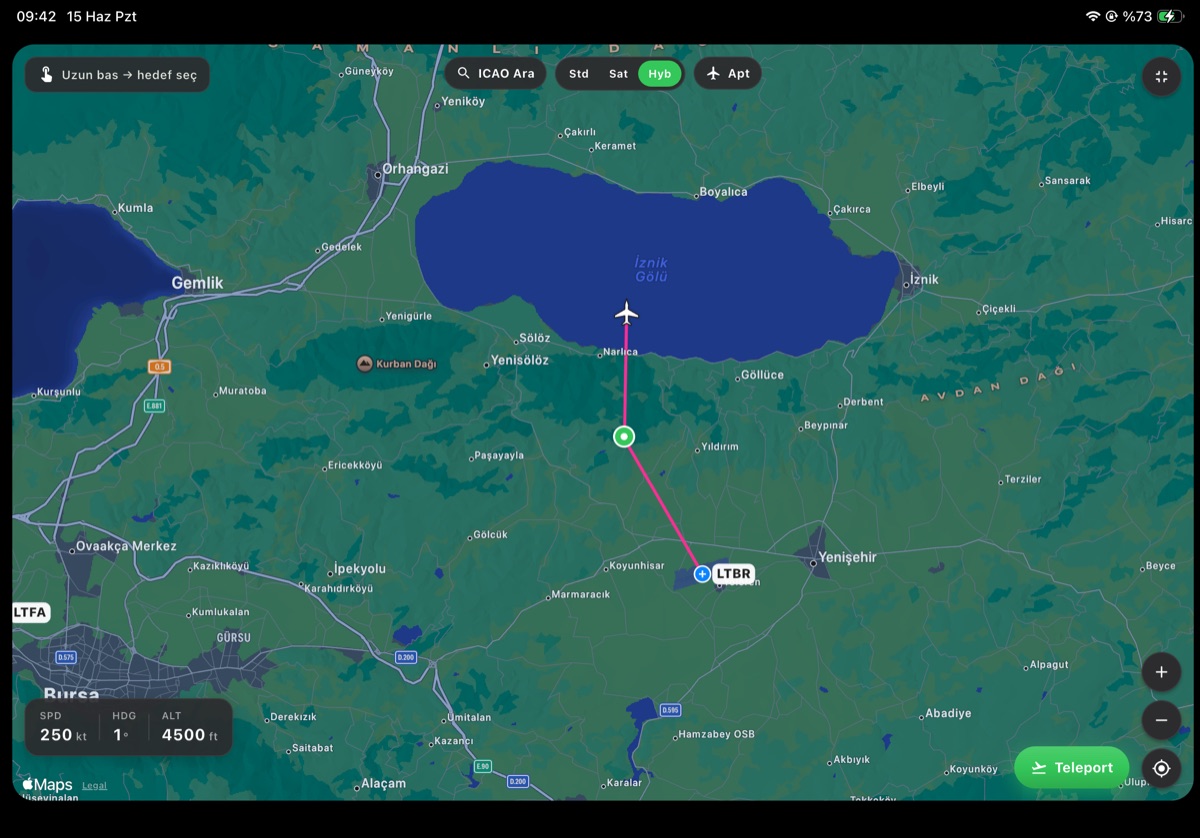
Review your flight trail
Your route stays on the map — review it, practice the same approach again or check your pattern work.
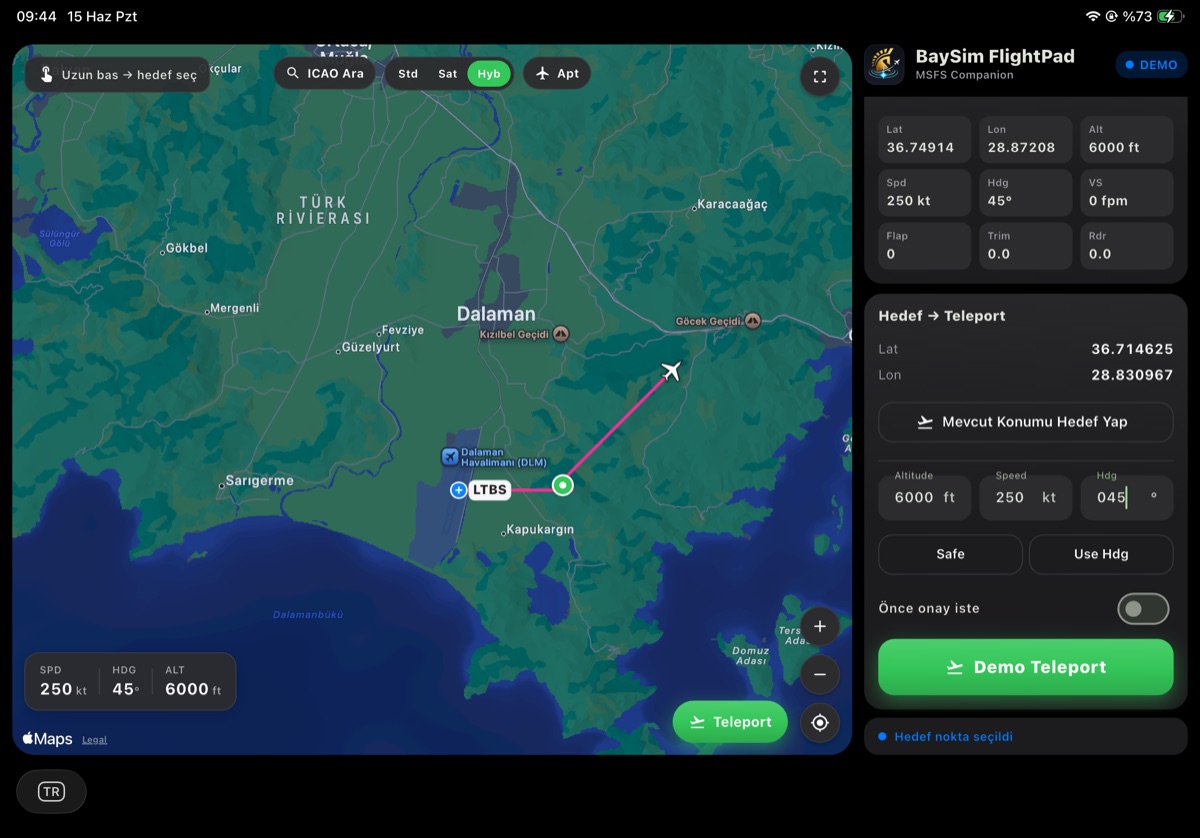
Tap a target and teleport
Long-press the map or search an ICAO code, set the target, confirm — and the aircraft is repositioned in the sim.
The actual iPad interface.
Captured directly from the app — no mockups, no renders.
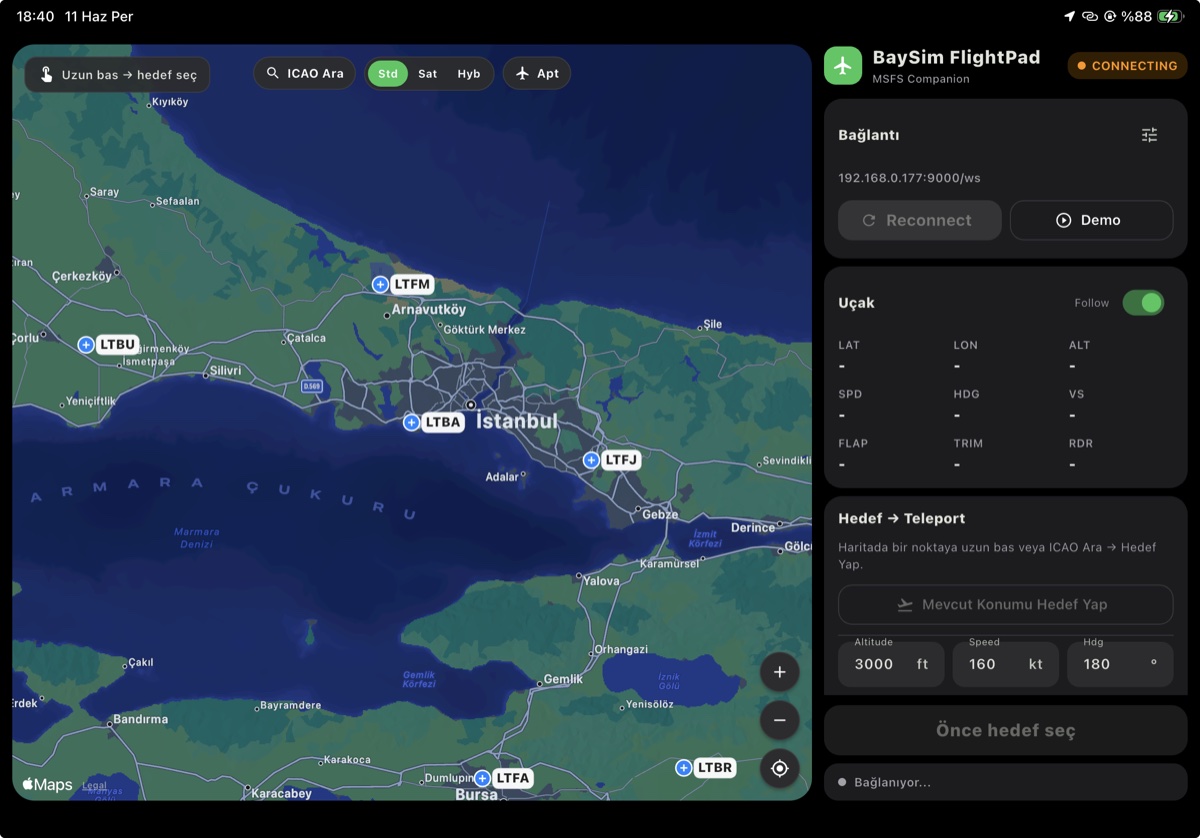
Dark cockpit mode
Low-glare map and panels for night flying and dim sim rooms.
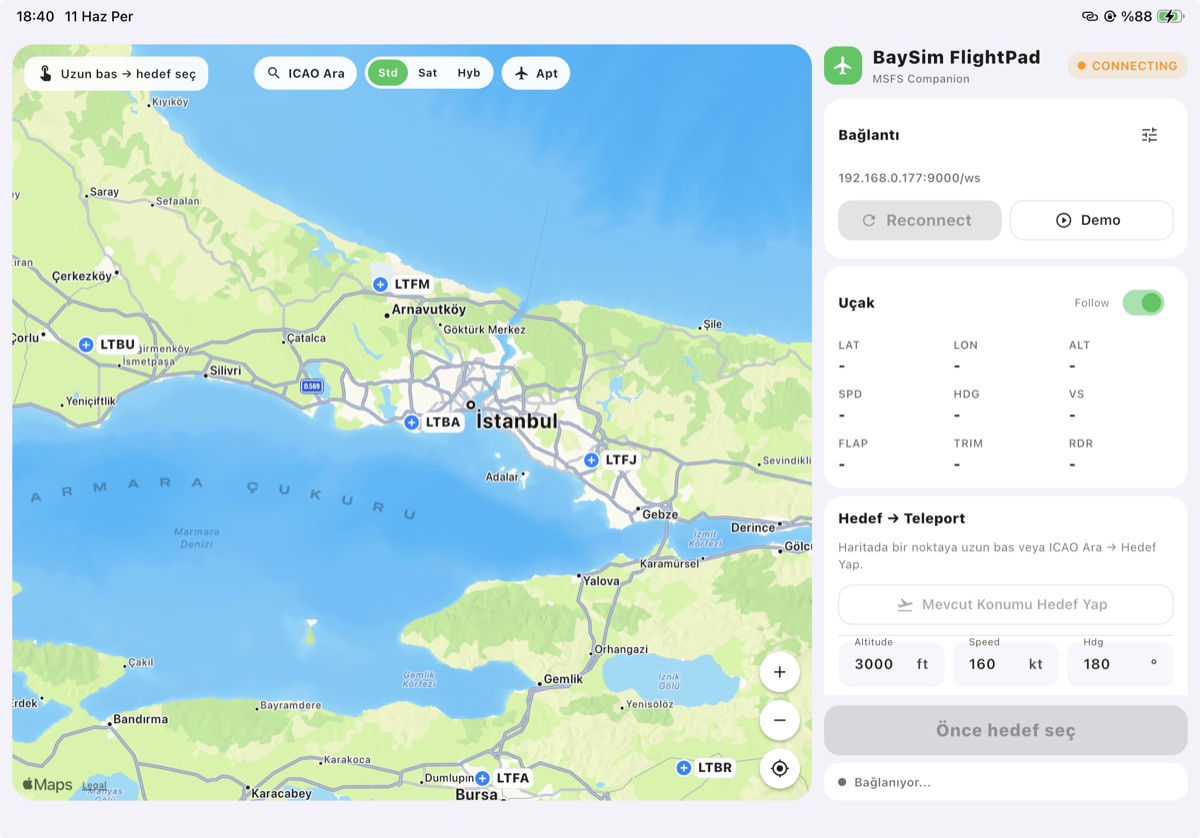
Bright daytime mode
A clean, bright map that reads instantly in daylight.
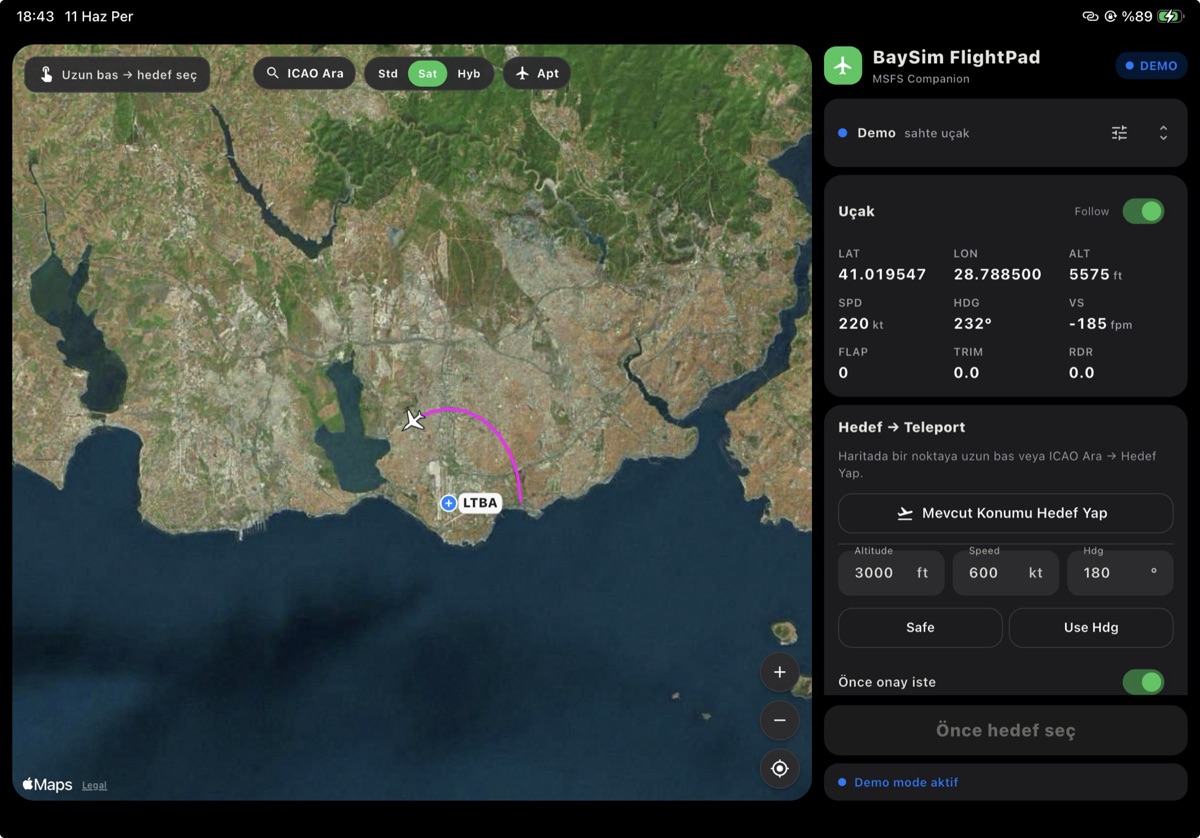
Satellite demo flight
Demo mode flying over satellite imagery — no PC required to try it.
Two devices. One local network.
The iPad app talks to a small companion on your simulator PC over your own Wi-Fi. The app finds the Bridge automatically — no internet connection, no account, no external server.
iPad App
Live map, trail and teleport controls.
Local Wi-Fi
Your own network. Nothing leaves it.
BaySim Bridge
A small free app on your PC that relays telemetry and teleport commands.
MSFS 2020 / 2024
Your simulator, untouched — connected via SimConnect.
Automatic bridge discovery • Local Wi-Fi only • No account • No cloud server
Prefer to set things up by hand? A manual connection (local WebSocket on port 9000) stays available under Advanced settings.
Up and running in minutes.
From a fresh install to a live map — and the app finds your PC for you.
Install the iPad app
Get BaySim FlightPad from the App Store on your iPad.
Install BaySim Bridge on your PC
Download the free Bridge on the Windows PC that runs MSFS.
Put both on the same network
Connect the iPad and PC to the same Wi-Fi or LAN — that's the only requirement.
Launch MSFS and the Bridge
Start a flight in MSFS 2020 or 2024, then open BaySim Bridge on your PC.
FlightPad finds your Bridge automatically
The app scans your network and shows your PC by name. No IP address or port to type in.
Connect and fly
Tap Connect and the map goes live: real-time tracking, flight trail, target selection and teleport.
You can also scan the Bridge's QR code, or enter its address by hand under Advanced settings. Firewall and network tips are on the Support page.
Get BaySim FlightPad.
Two pieces, one setup: the iPad app from the App Store and the free Bridge for your simulator PC.
iPad App
The companion map for your cockpit.
Download on the App Store- Requires an iPad running iPadOS
- Landscape orientation
- Demo mode works without a PC
BaySim Bridge for Windows
The free companion for your simulator PC.
Installer (.exe) Download Windows Bridge- Windows 10 or later
- Microsoft Flight Simulator 2020 or 2024
- Self-contained installer — no extra runtimes needed
For Microsoft Flight Simulator training and simulation use only.